Creating an inline task
You can assign tasks directly to any Telegram user without creating a shared group with them.
How to assign a task
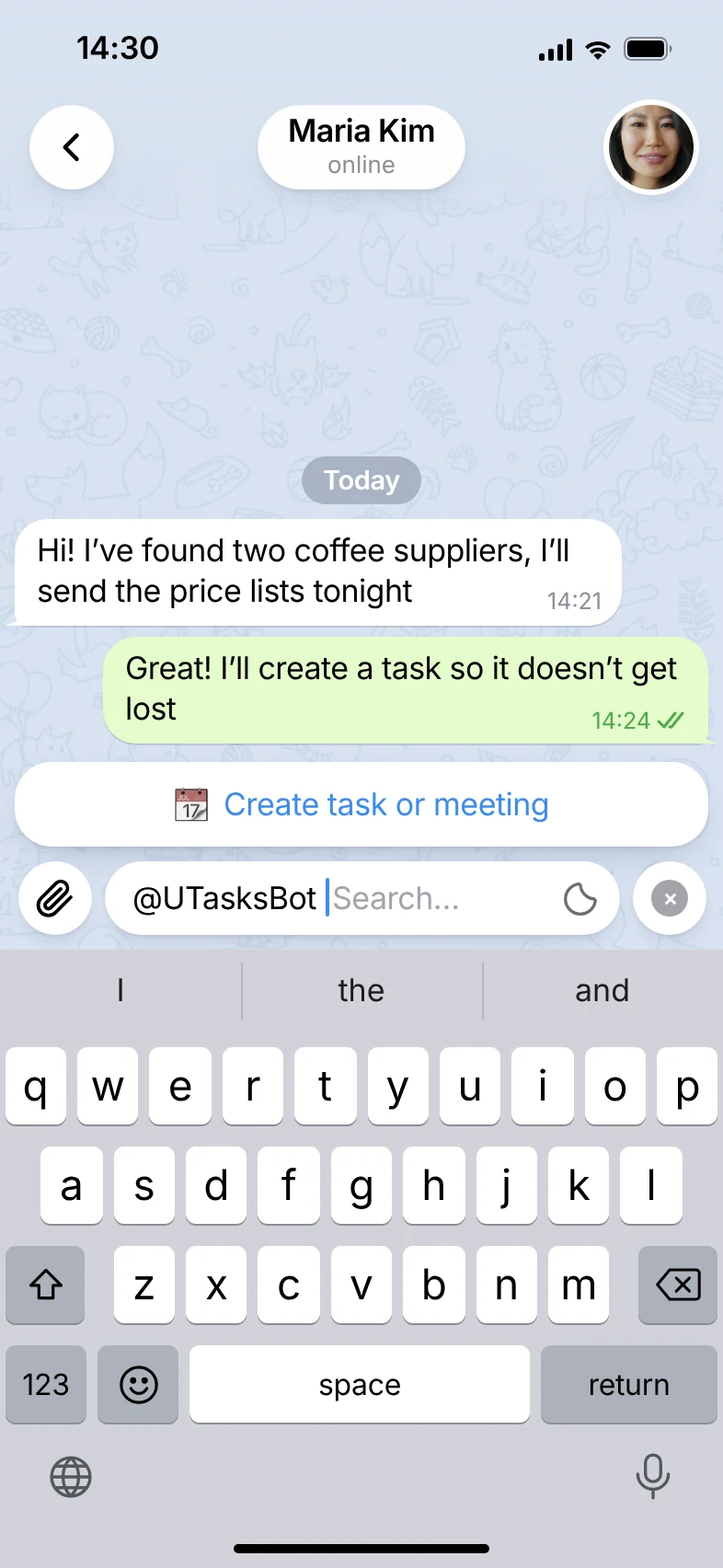
Section titled “How to assign a task”In the chat with the user, type @UTasksBot followed by a space, then tap the pop-up “Create task or meeting” button.
The task card opens. Fill in the fields (as described in detail in this article) and tap “Create”.
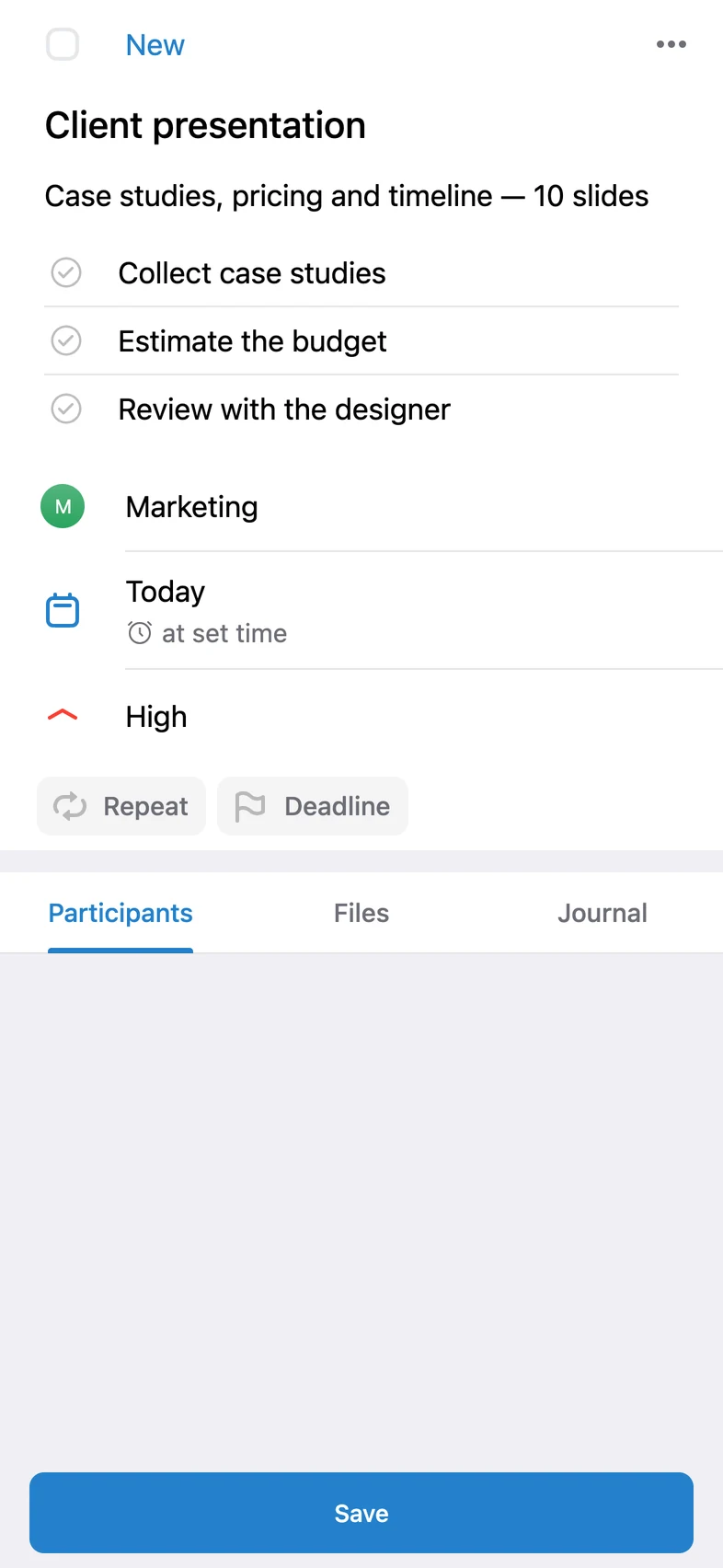
Note that the assignee is shown as Telegram Contact. Until a user accepts the task, the assignee is not defined. A good analogy for this mechanism is a bearer cheque, which anyone holding it can cash.
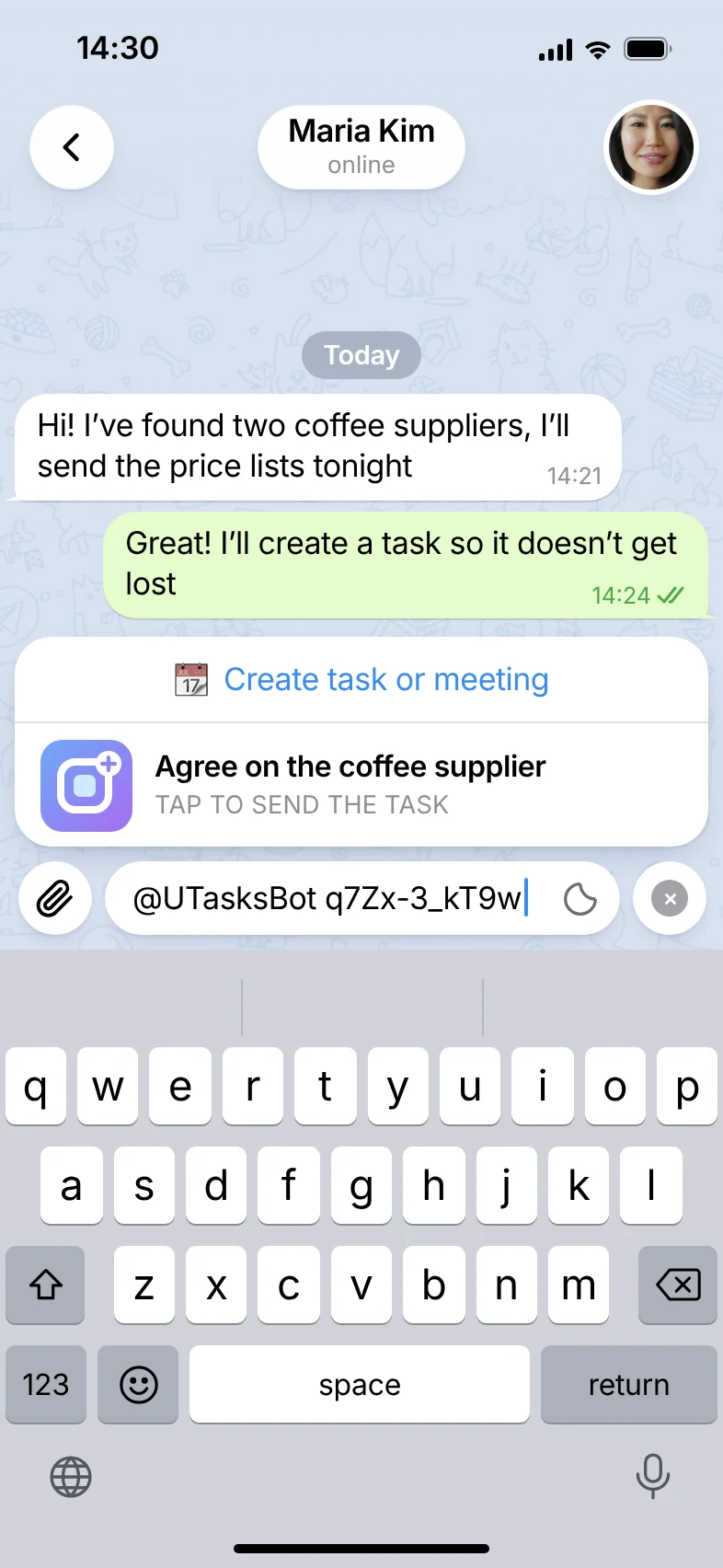
Then you continue in the chat. Tap the button from UTasksBot in the chat.
How to accept a task
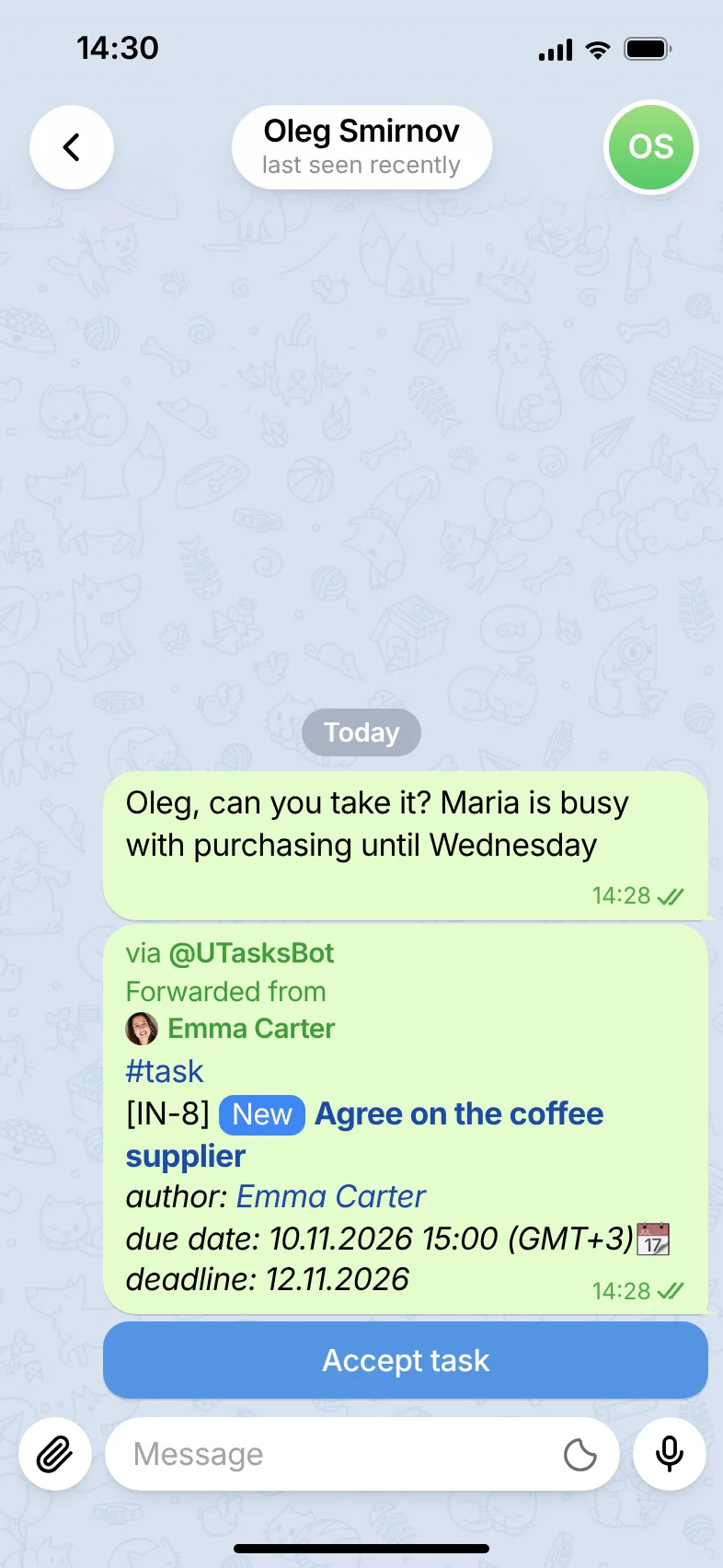
Section titled “How to accept a task”The task is created in the chat, and it can be accepted with the “Accept task” button.
Note that both the assignee and the author can accept the task.
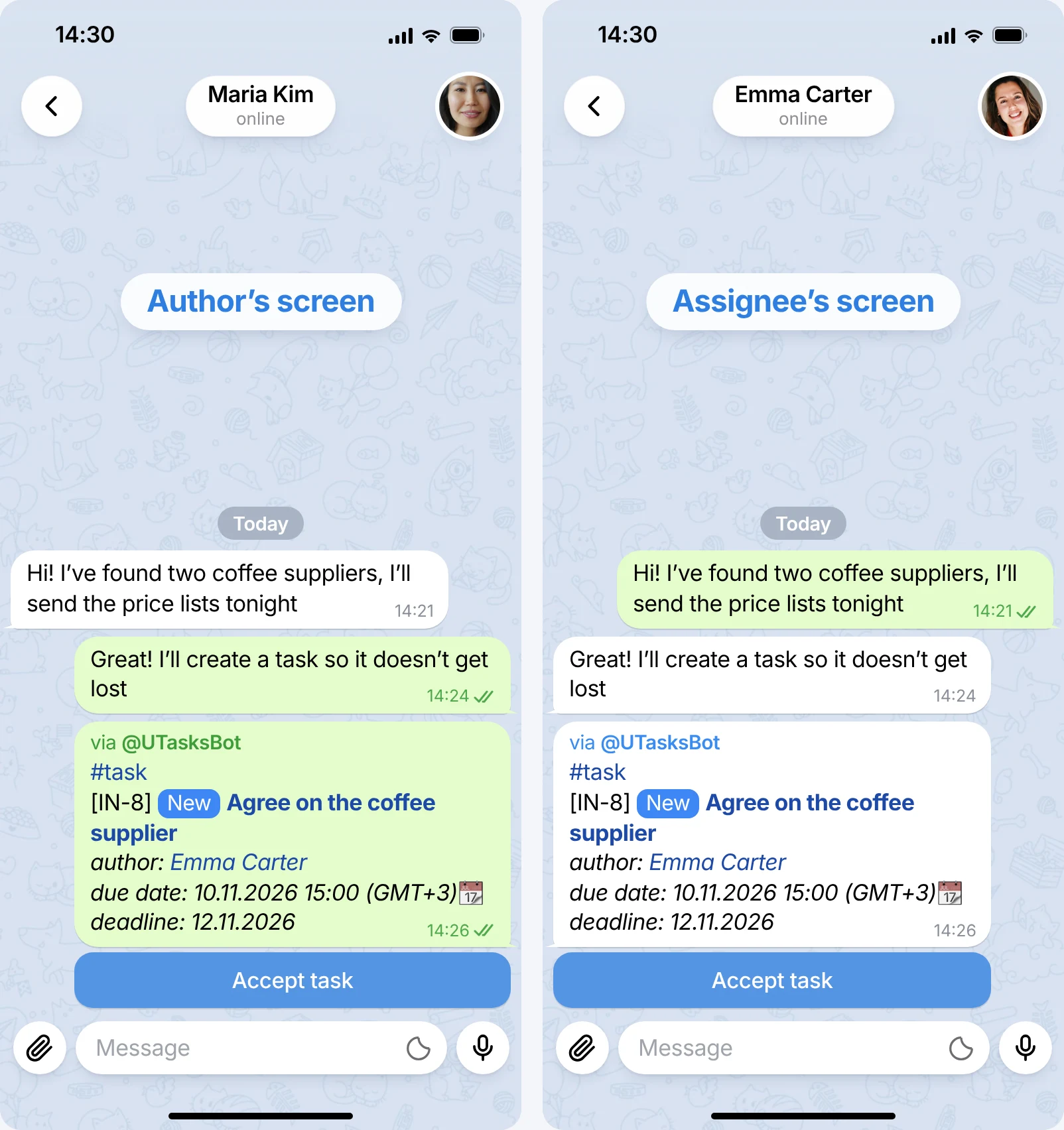
What’s more, if you forward the message with an unaccepted task to another user, they can tap “Accept task” and become its assignee.
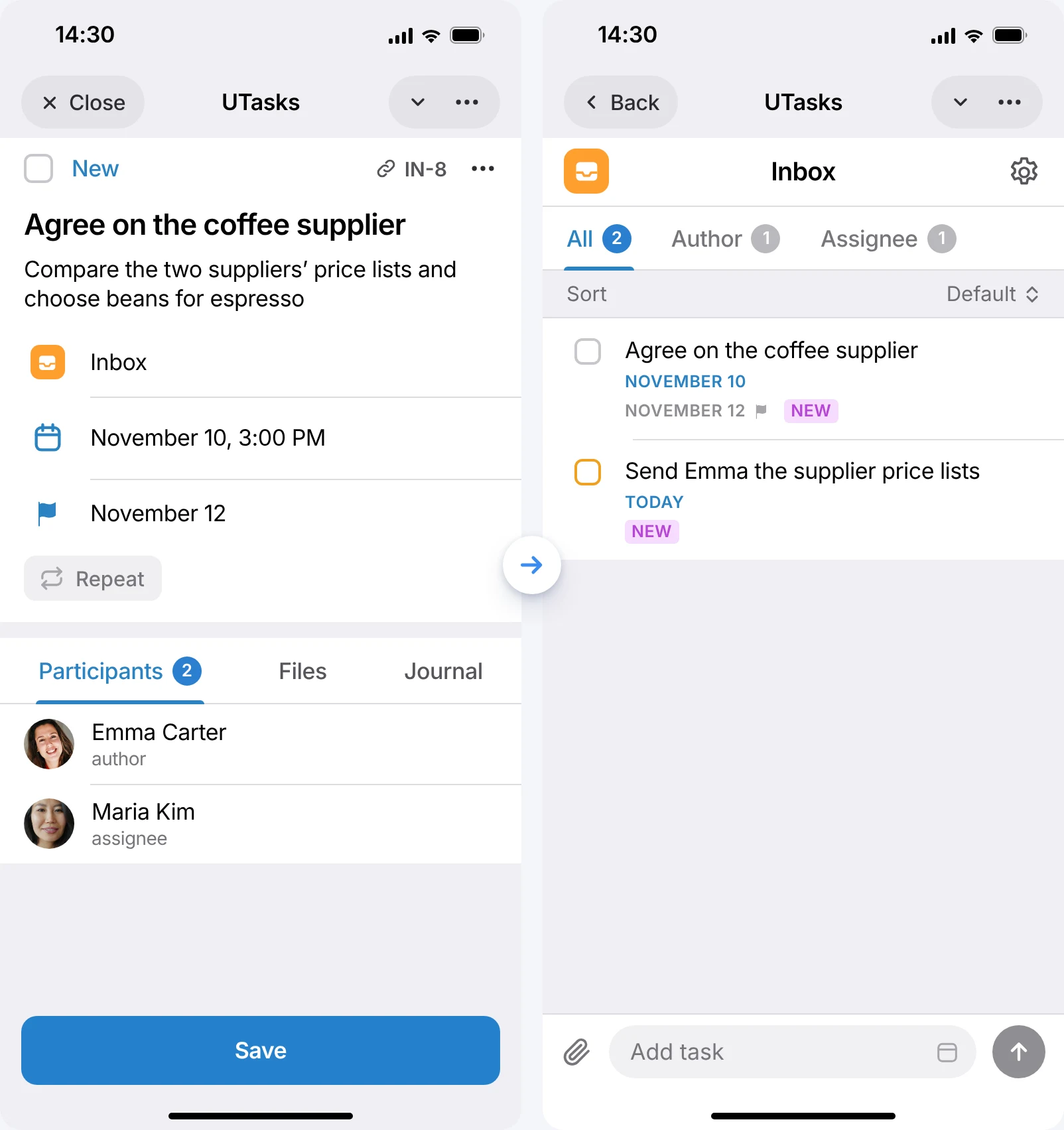
Once the task finds its assignee and they accept it and tap “Save”, the task appears in their “Inbox” project.
After that, other users can no longer accept the task.
Inline tasks are completed the usual way.
Video overview
Section titled “Video overview”You can watch a short video overview of inline tasks in our channel.