Full screen and working in a browser
You can expand UTasks to full screen, stretch the app window on a computer or open the app in a browser. The wider the window, the more you see at once.
Full screen mode
Section titled “Full screen mode”In Telegram, you can expand the app to full screen with the middle tab at the bottom of the screen – “Expand”. In full screen mode this tab is called “Collapse”: it returns the app to its normal size. All tabs are described in Getting started.

Wide window
Section titled “Wide window”On a computer, you can stretch the UTasks window. When the window is wide enough, the app shows everything in three columns:
- on the left – search, sections and your projects;
- in the middle – the tasks of the selected section or project, the “+ Task” button and the “Write a task…” line for a quick task;
- on the right – the open task: its fields, members, files, log and comments.
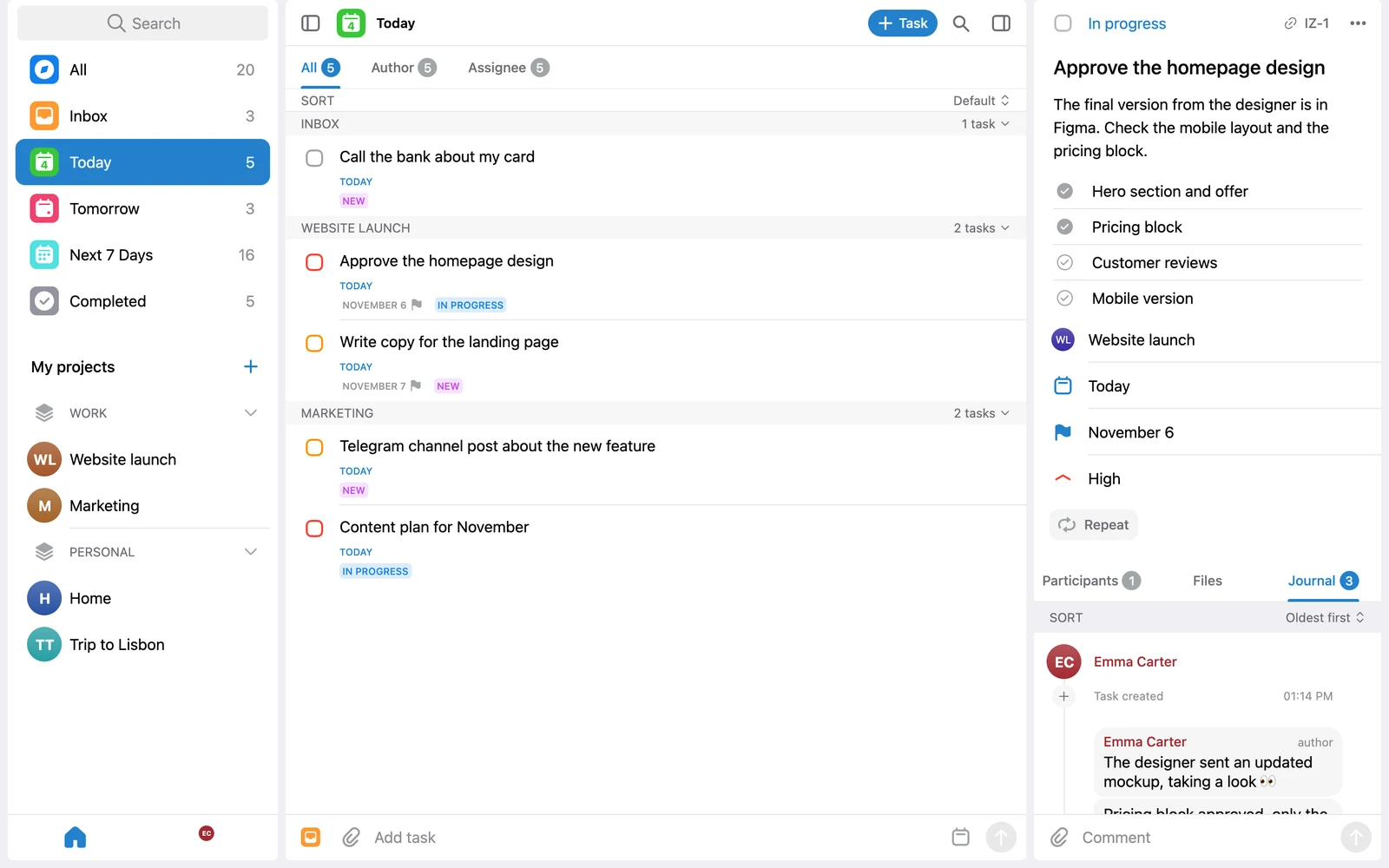
You can open a task without losing sight of the list: it appears in the right column, and the list stays in place. The “+ Task” button opens the full card of a new task in the right column – see Method 2. Using the Plus button.
Open in a browser
Section titled “Open in a browser”UTasks also works in a regular browser. Open the Profile tab and tap Open in browser – the app opens in your default browser.
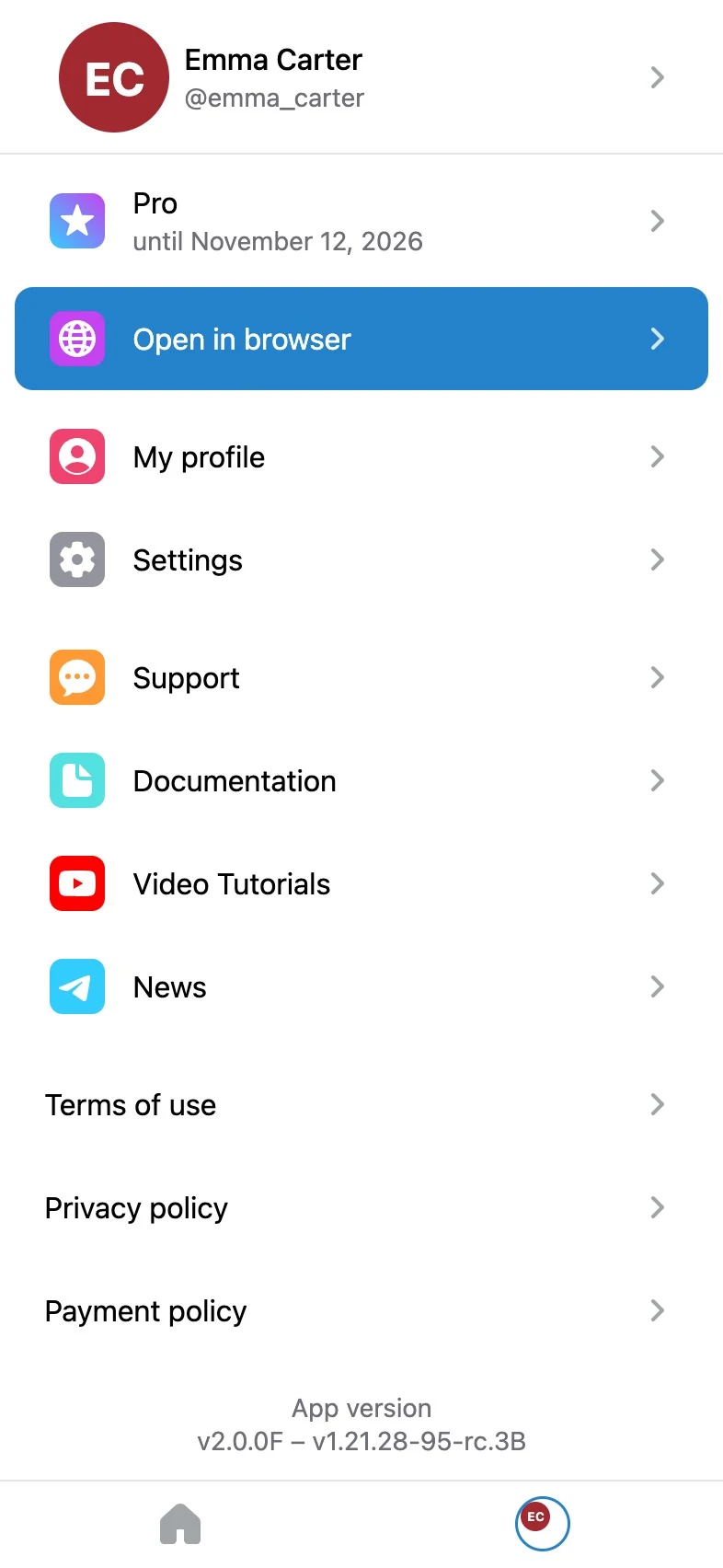
A browser is handy for working with tasks on a big screen: stretch the window, and UTasks switches to three columns. The “Open in browser” item is available in the Telegram app on a computer and a phone; if UTasks is already open in a browser, the item is not shown.
See also: