Method 3. A message to the chat
This quick way to create a task is handy when you need to jot down an assignment or a reminder on the go.
How to create a task
Section titled “How to create a task”You don’t even have to open the app: just send the bot any message, and it offers to create a task with that name.
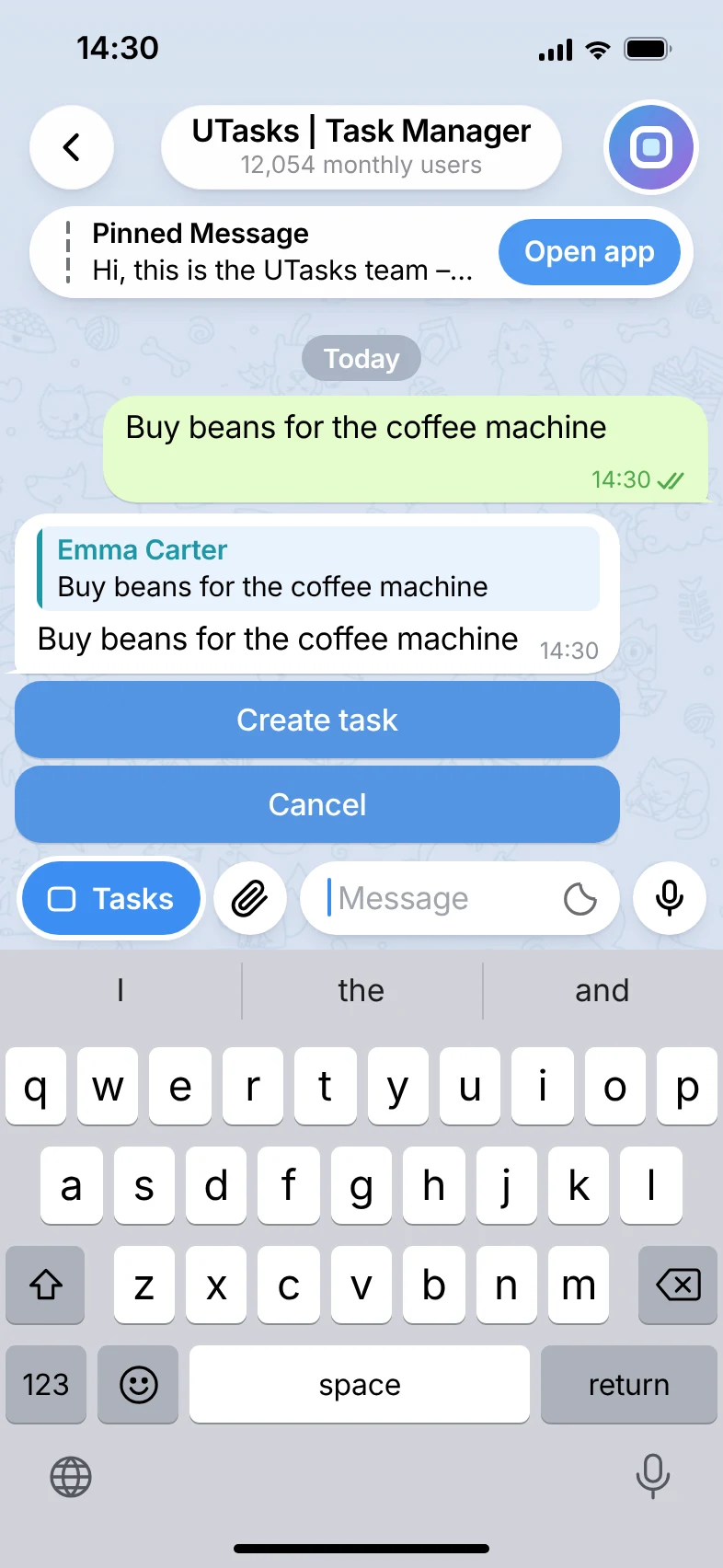
Confirm “Create task”: the task is created in the “Inbox” folder and gets a number.
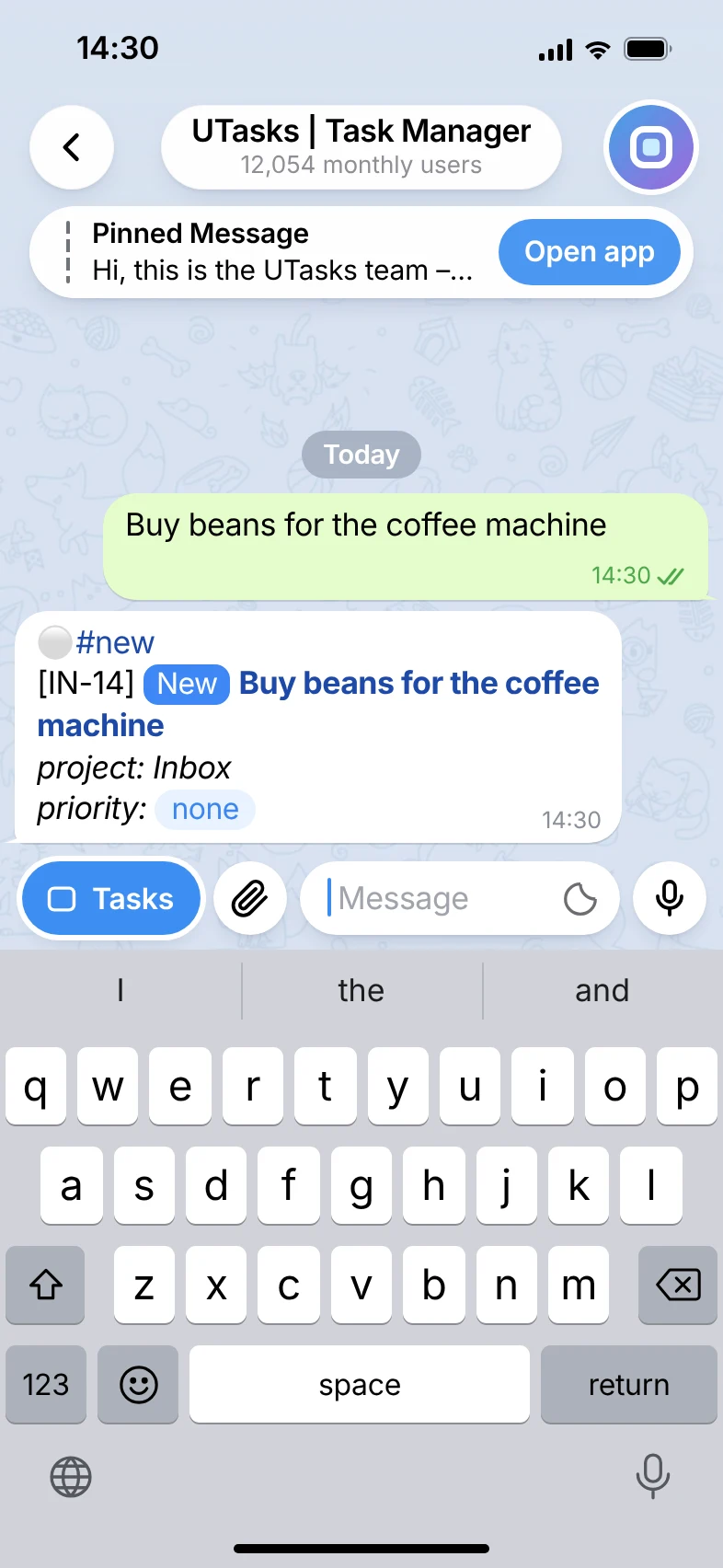
After the task is created
Section titled “After the task is created”Then you can edit it: change the project, set the date, deadline*, status*, priority*, attach files*, change the author, add assignees* and so on.
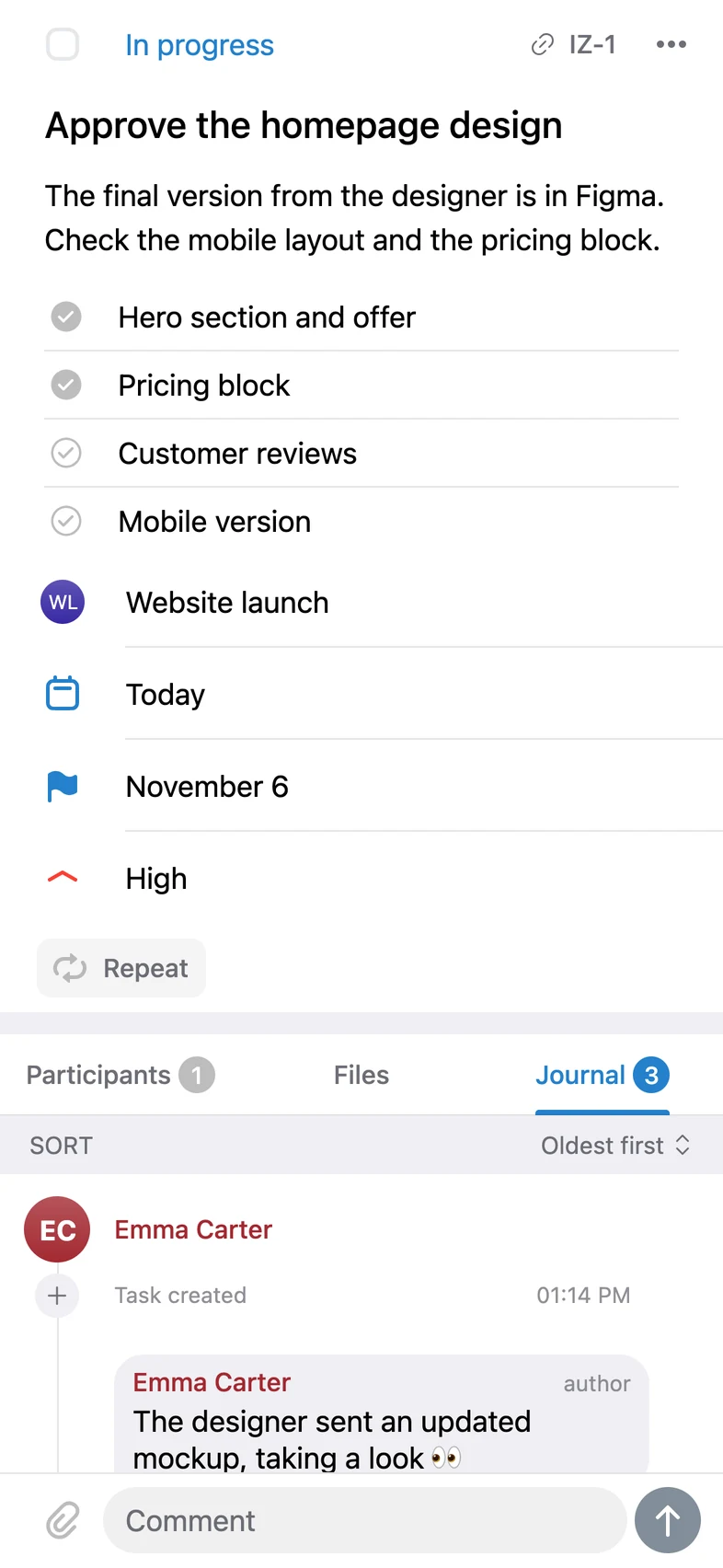
You can also:
- Delete the task;
- Leave a comment – reply to any notification from the bot about this task in the group or in the chat with the bot.
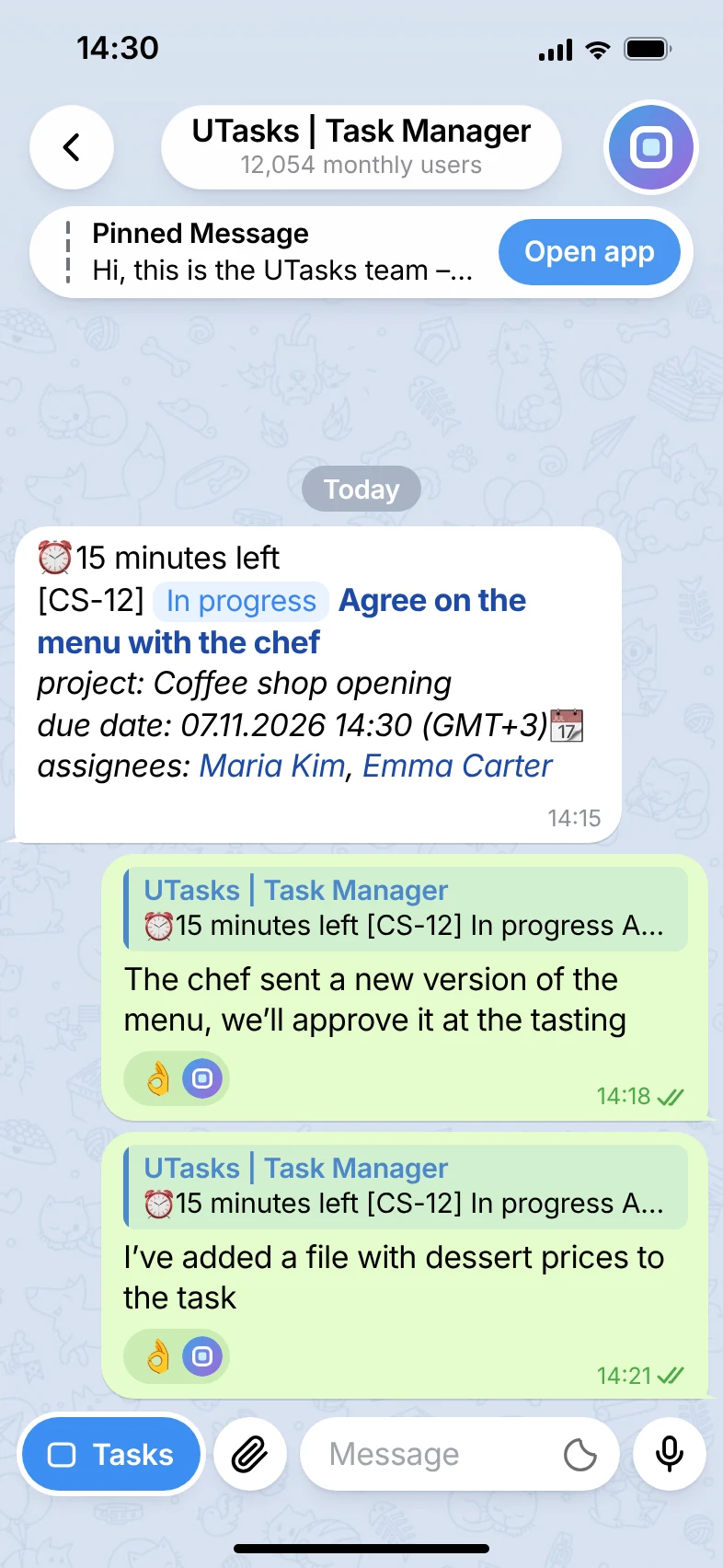
All changes and comments are shown in the “History and comments” block.
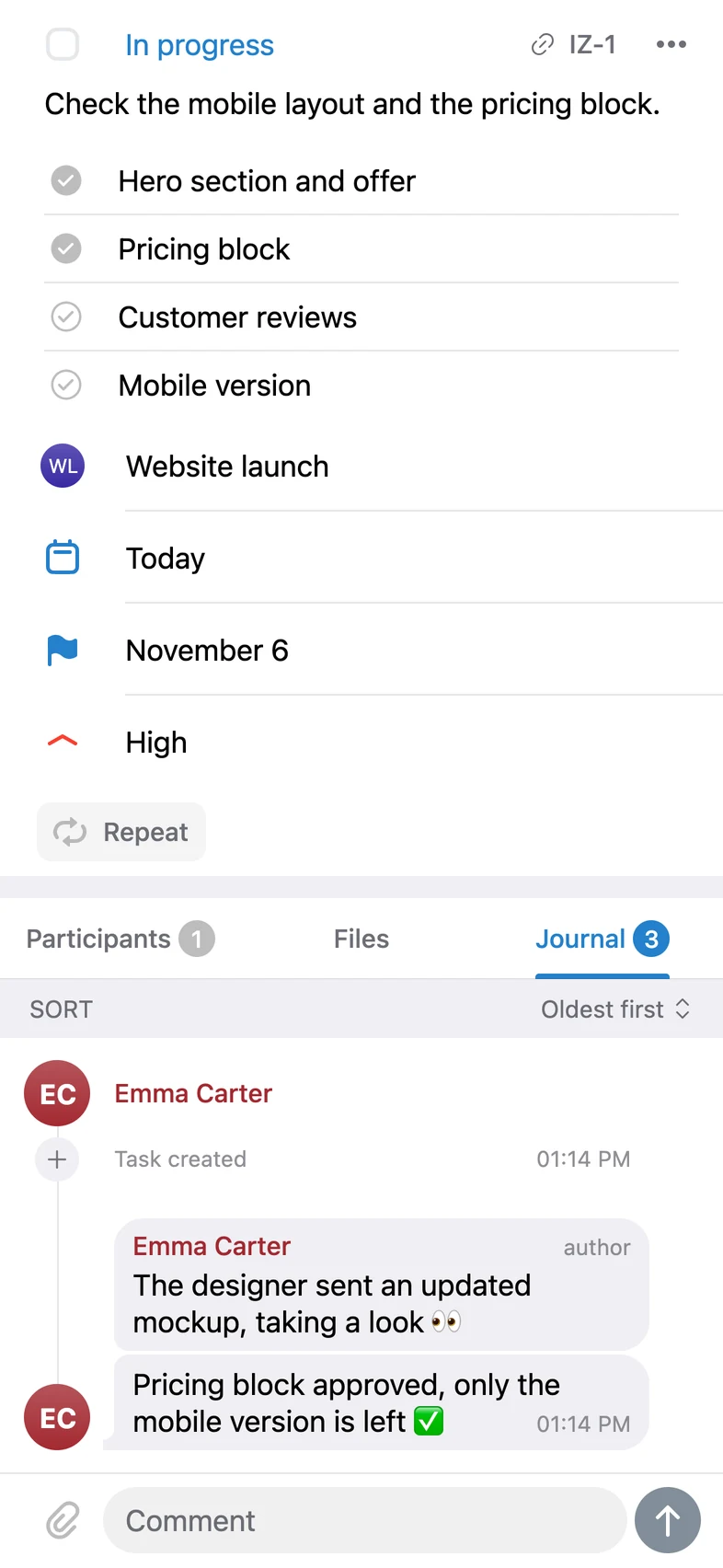
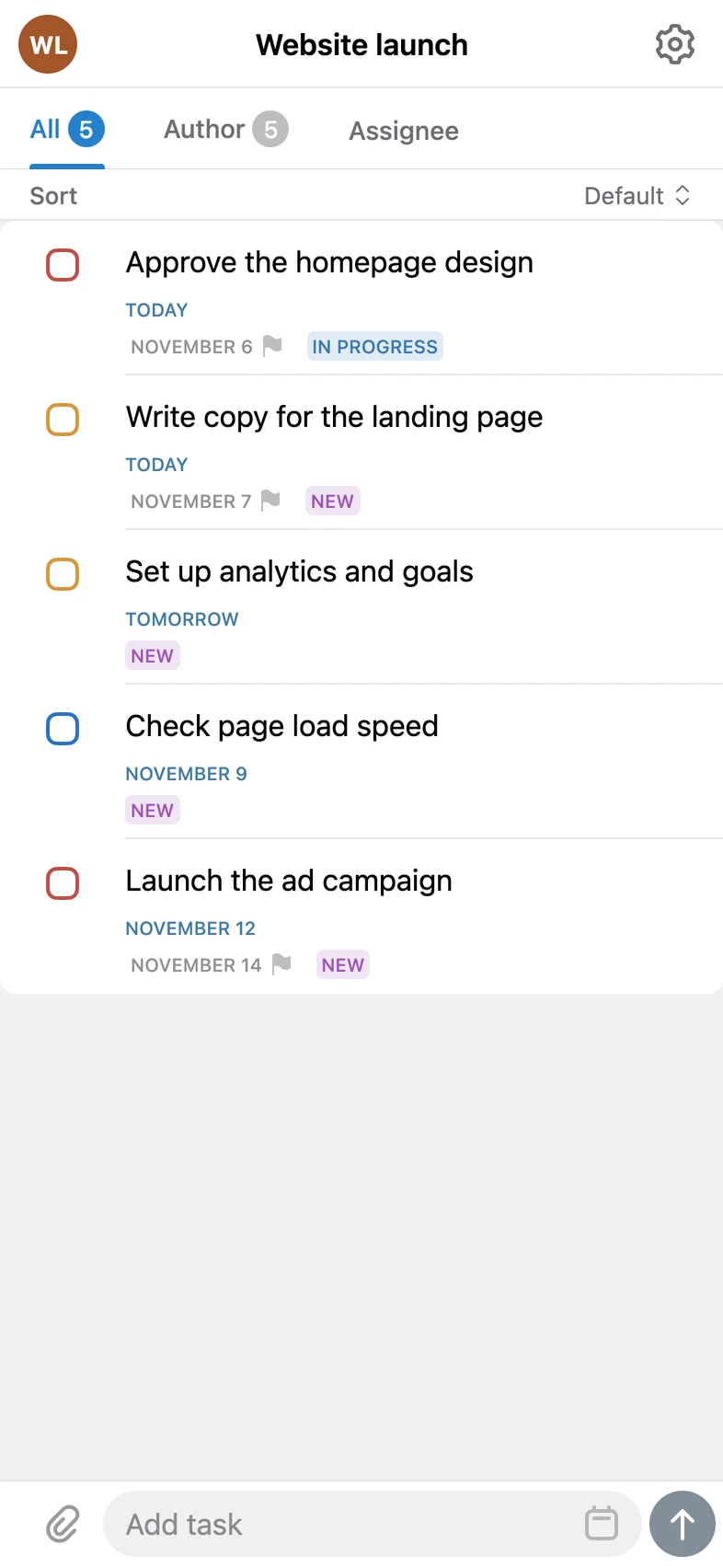
The edited task appears in the project folder according to its new details.
* – the feature is available only on the PRO plan